Campus Alerting System - Signup Instructions
Campus Alerting System - Signup Instructions
Follow these steps to sign up for campus alerting notifications.
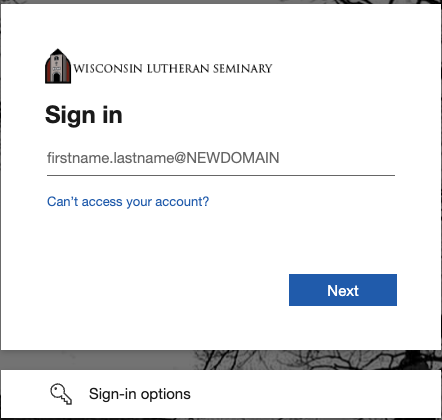
2) Type your WLS email address and click the "Next" button.
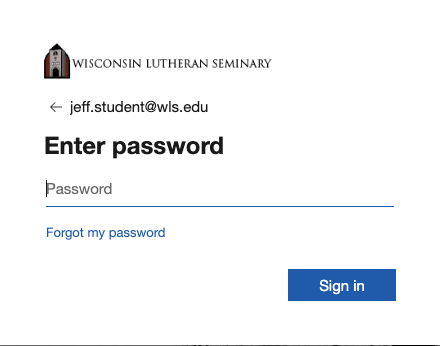
3) Type your WLS email password and click the "Sign in" button.
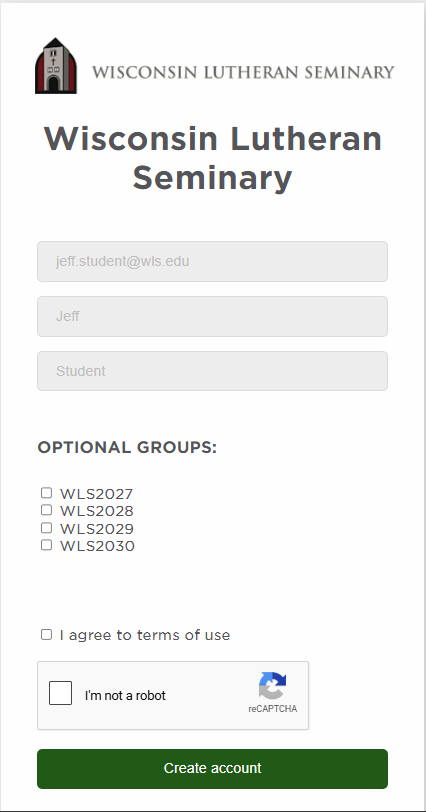
4) Check the boxes for the years that you are on campus to subscribe to alerts. Check the box to agree to the terms. Check the box next to "I'm not a robot." Click the "Create account" button.
5) On the next screen, add how you would like to receive alerts (text message, email, etc.). If adding a cell phone number for text (SMS) alerts, select your carrier from the list. If your carrier is not listed, leave the carrier field at its default setting. Click the "Add new" button.
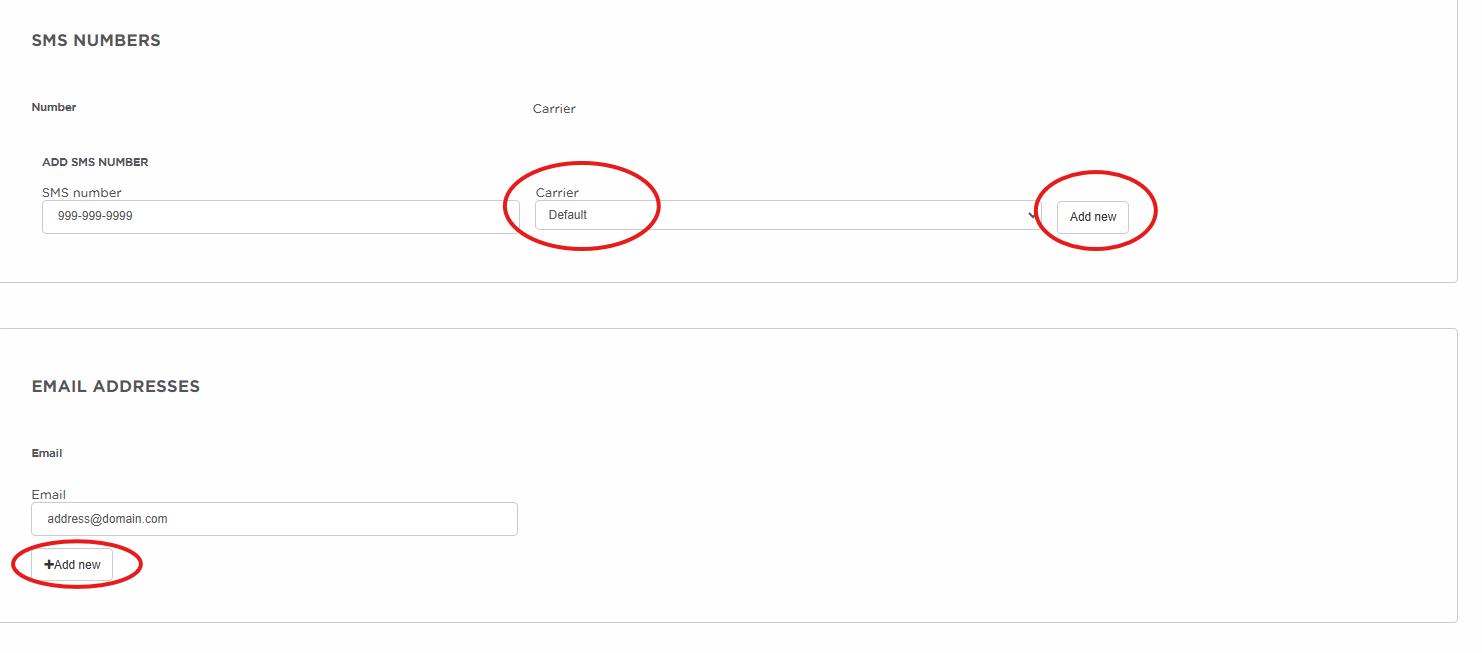
6) If you added a cell phone number, you will receive a Validation Code by text message after clicking the "Add new" button. Type the Validation Code in the field and click the "Validate" button.
If you added an email address, you will need to click on "Validate" in the email you received. If you have not yet received the email, make sure to check your spam/junk folder and try clicking "Resend". Add no-reply@omnilert.com to your contacts list to avoid having the email sent to your spam. To add another phone number or email address, click "Add new" again.
You're now signed up to receive campus alerts.
Unsubscribing from Alerts
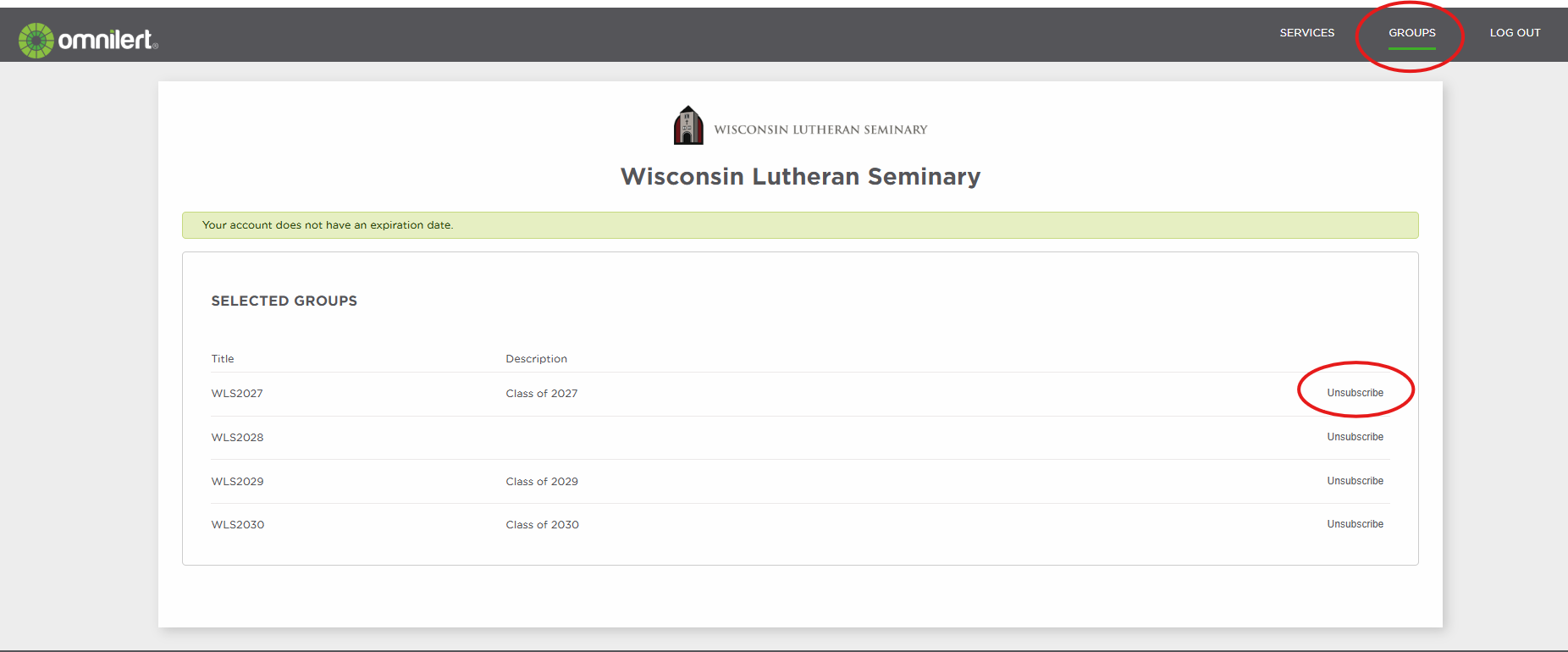
If you would like to unsubscribe from notifications, click the "GROUPS" link at the top of the window and click "Unsubscribe" next to the group that you would like to unsubscribe from.