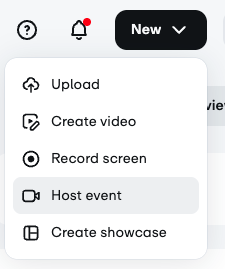
The streaming configuration starts with Vimeo. Once you have logged in, got the upper right and click on the New dropdown and select 'Host Event'.
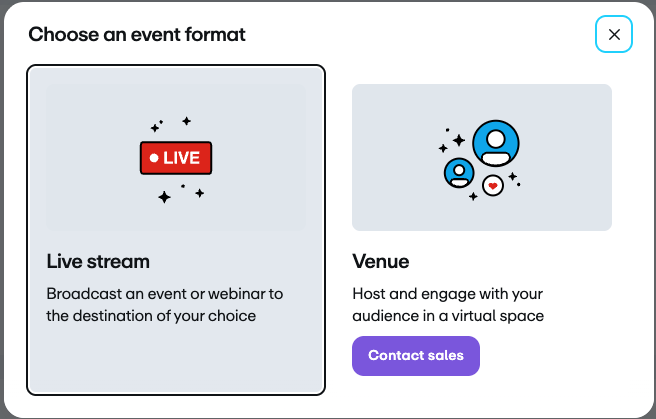
From the 'Choose an event format' screen, select Live stream.
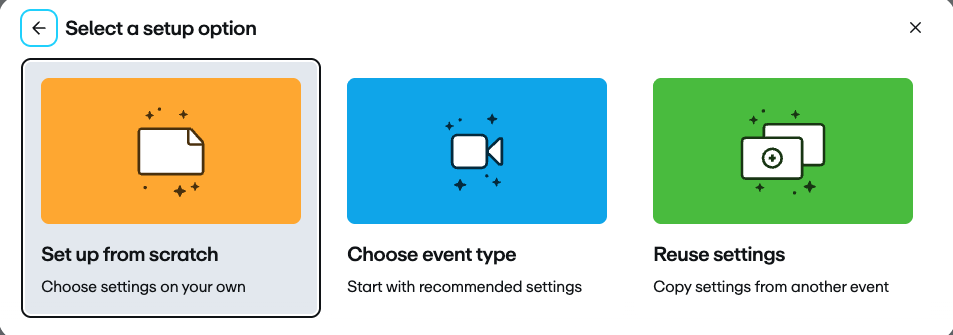
From the 'Select a setup option' screen, use the Set up from scratch option.
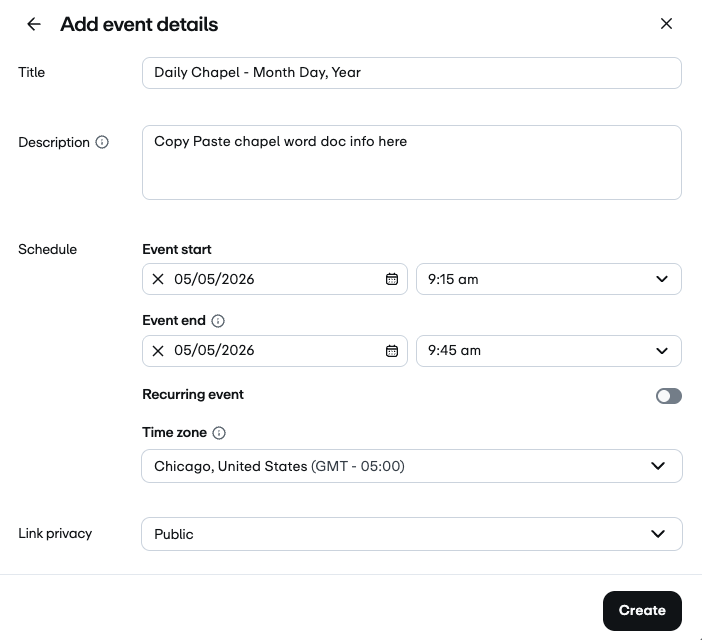
Add the details from the Chapel word doc provided in Microsoft Teams under All Sem - Chapel. Make sure you're in the current school year's channel.
Once all of the info has been entered from the Weekly Chapel word doc, click Create. This will take you to the Event's set up page.
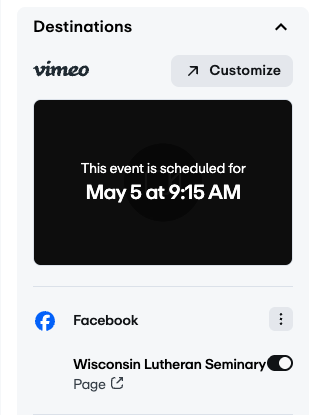
The last thing to do in Vimeo is to make sure Facebook is selected for destinations. To do so, on the right side of the screen select the 'Destinations' dropdown. Make sure the Facebook connection to Wisconsin Lutheran Seminary is active. If not, click on the slider and make it active.

No comments to display
No comments to display