
Microsoft Edge "InPrivate Window" on Windows
Use an InPrivate window when you do not want Edge to save local browsing history, cookies, site data, or form entries after the window is closed.
HINT: Quick keyboard shortcut: Ctrl + Shift + N
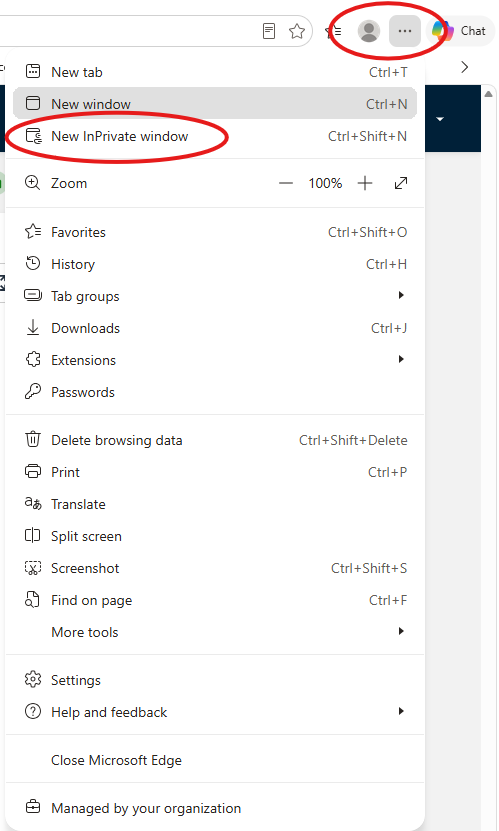
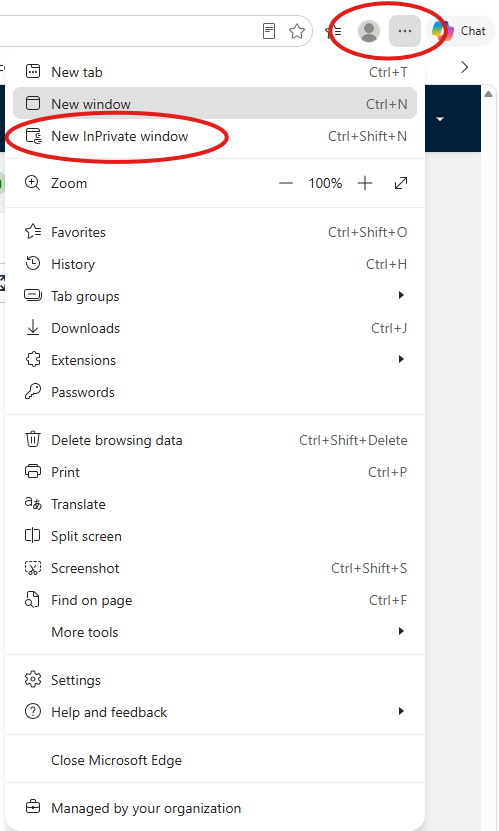
- Click the three-dot button in the upper-right corner of the Edge window and then choose "New InPrivate window" from the dropdown.
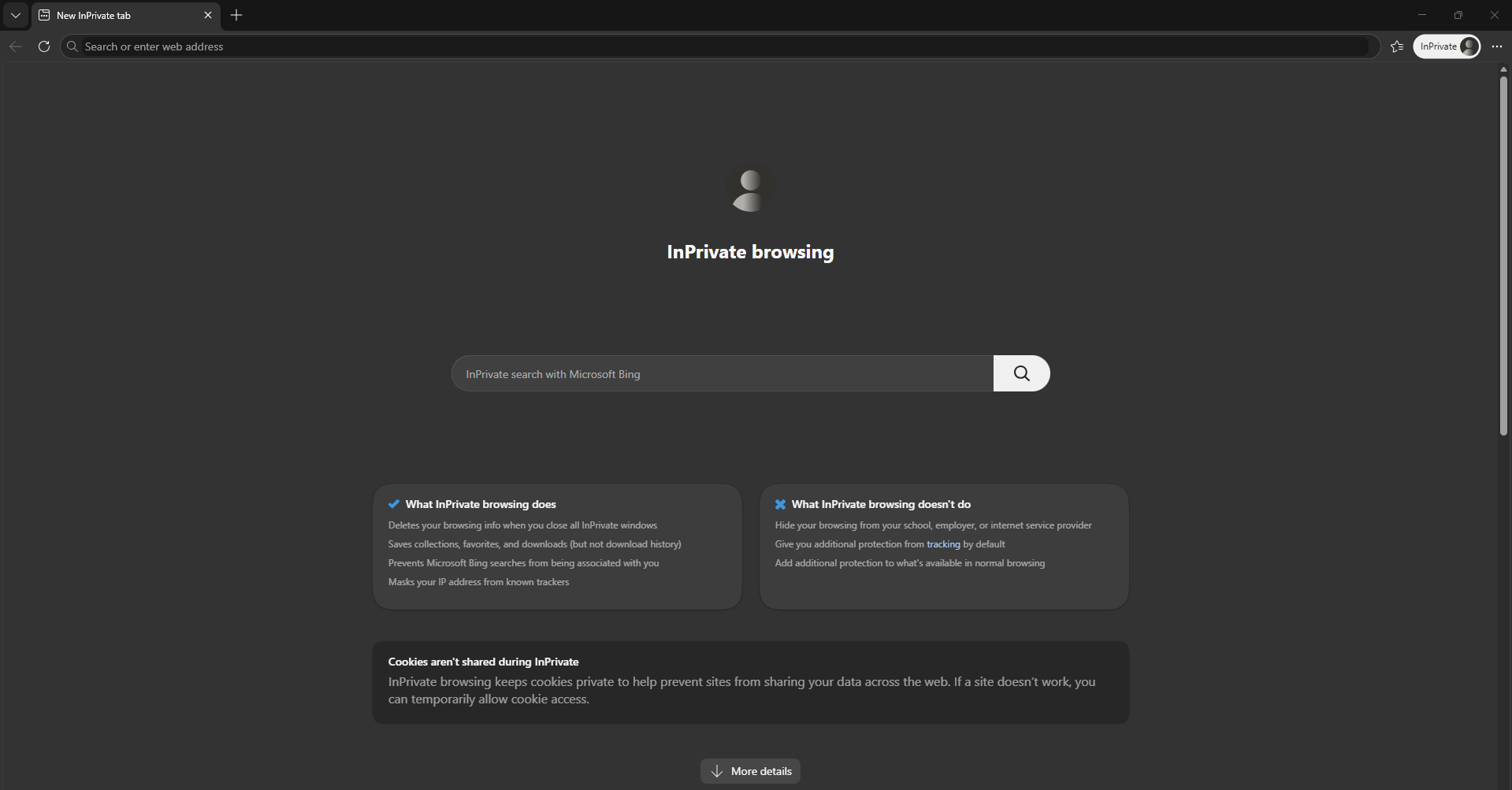
- A separate InPrivate window opens. Look for the InPrivate label near the top of the window.
Important to know
-
InPrivate browsing limits what Microsoft Edge stores on the device after you close the window.
-
Downloaded files and saved favorites remain on the device.
-
InPrivate browsing does not make your activity invisible to websites, your internet provider, or your organization.