
Copy old course data to new course
Most professors request a previous course to be copied to their new/current course. To do so, open Semnet. If you haven't signed in, make sure to select the Log in with Microsoft 365 button.
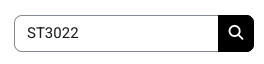
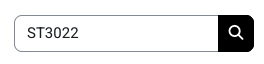
From the search bar type in the course number you want to copy to, click search.
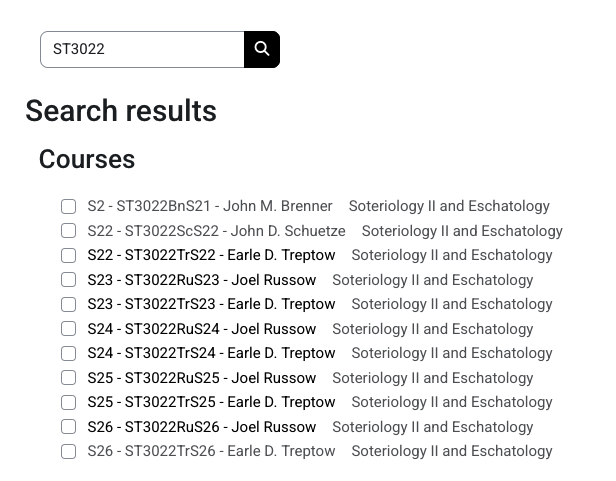
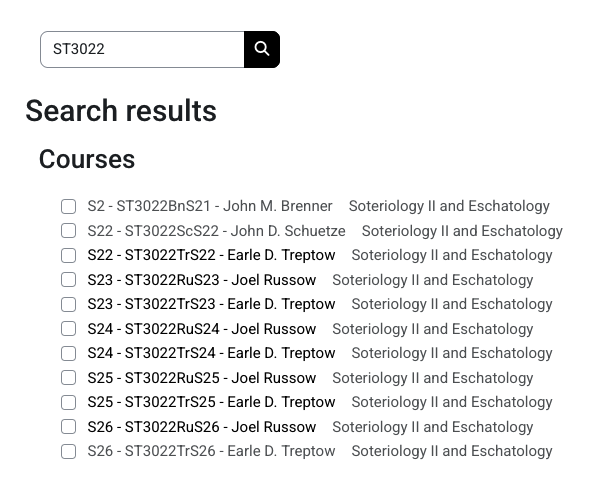
Find the course that you want to edit and click on the full course name 'S26 - ST3022...'
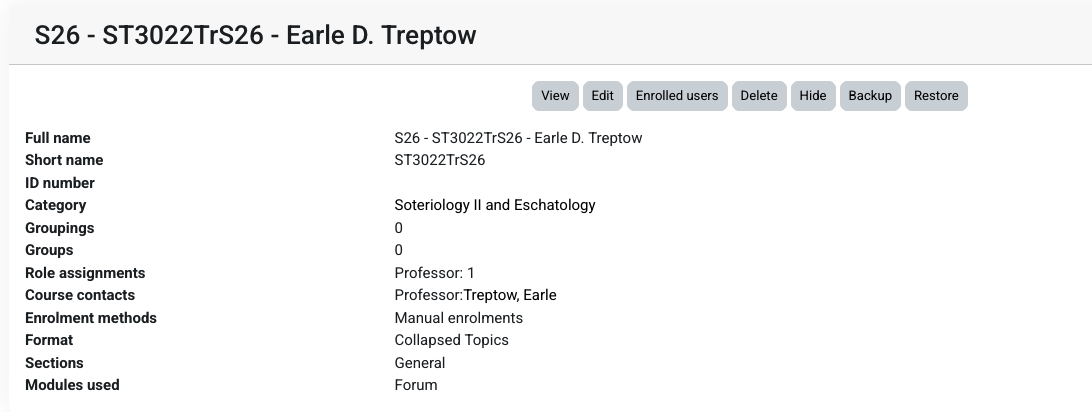
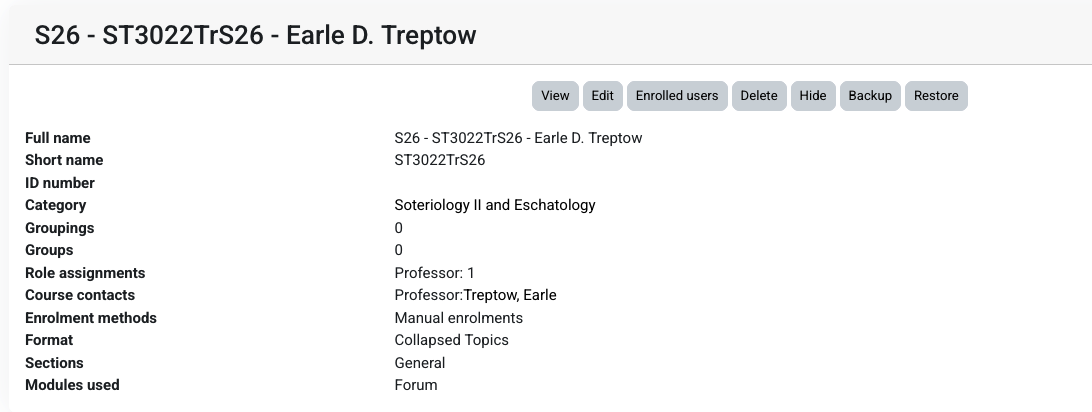
 When you click on the course link, it will bring up a window displaying the course. Verify that is the course you want to edit and click the 'View' button.
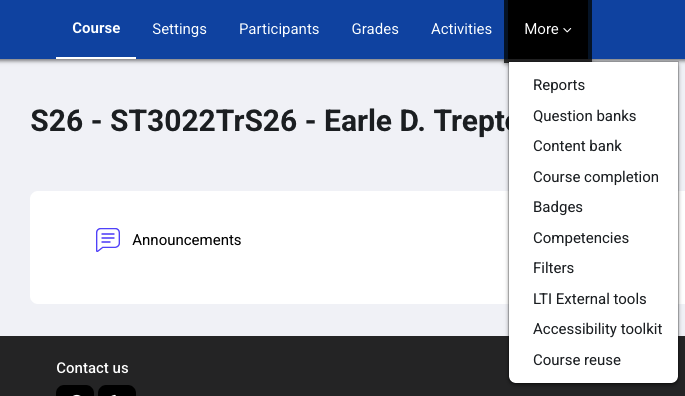
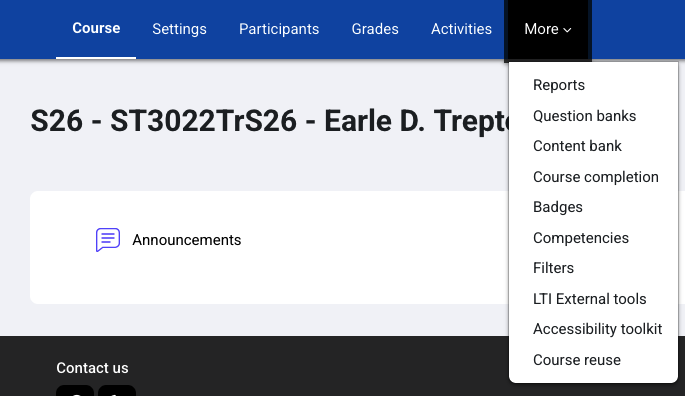
The course page will load, you can click on More, which will drop down and you can select course reuse.
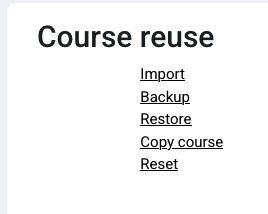
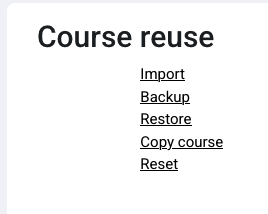
Click Import on the 'Course reuse' page.
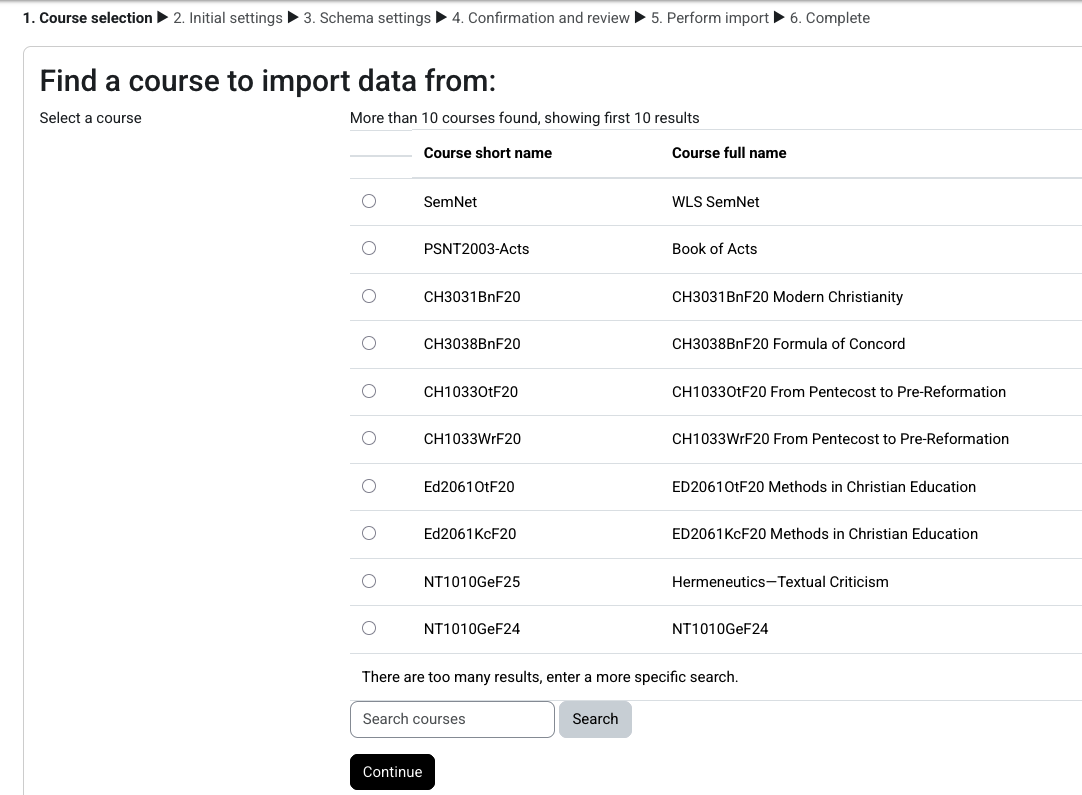
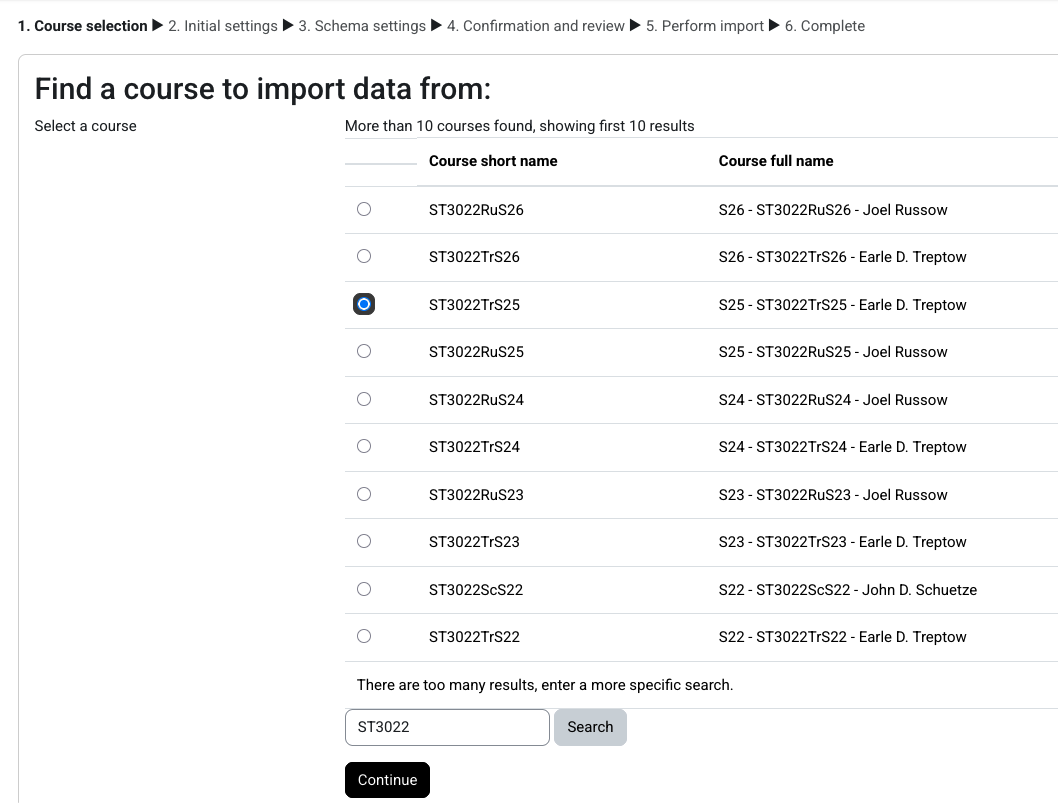
The next screen is where you can select a previous course to pull data from. This will not pull any previous student or grade info. You may not see your course in the list, use the search courses box at the bottom of the page.
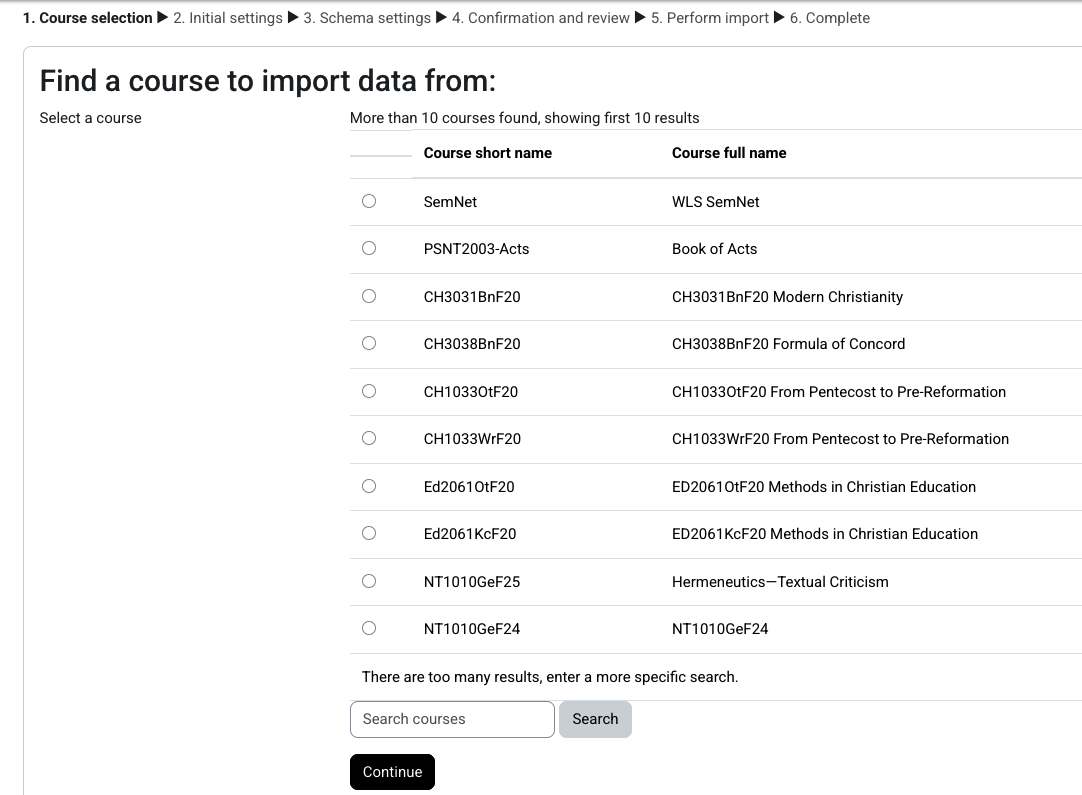
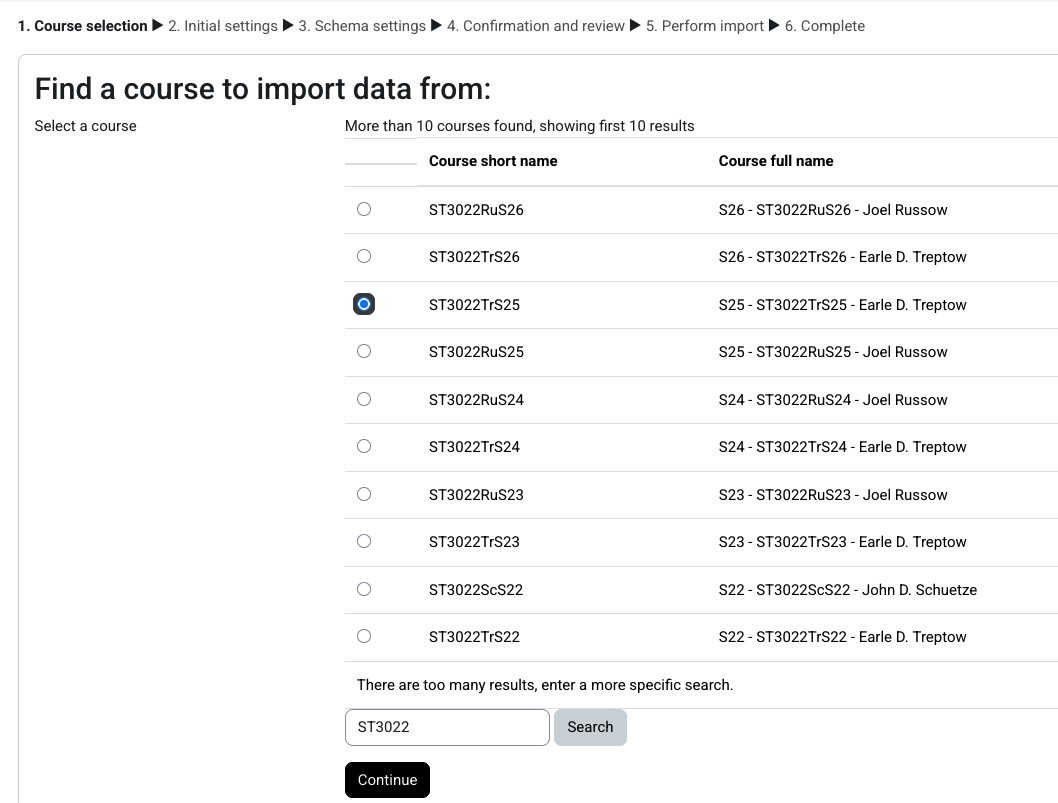
A new page will display with a list of courses that match your parameters. Select the radio button next to the course you want to import into the new course. Click Continue.
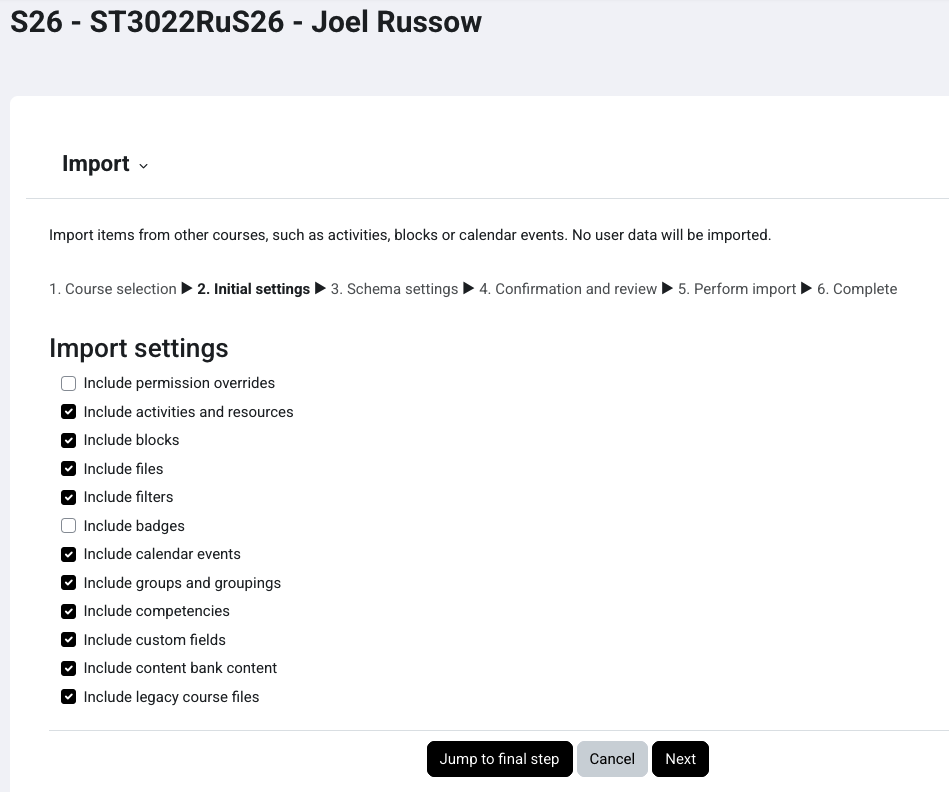
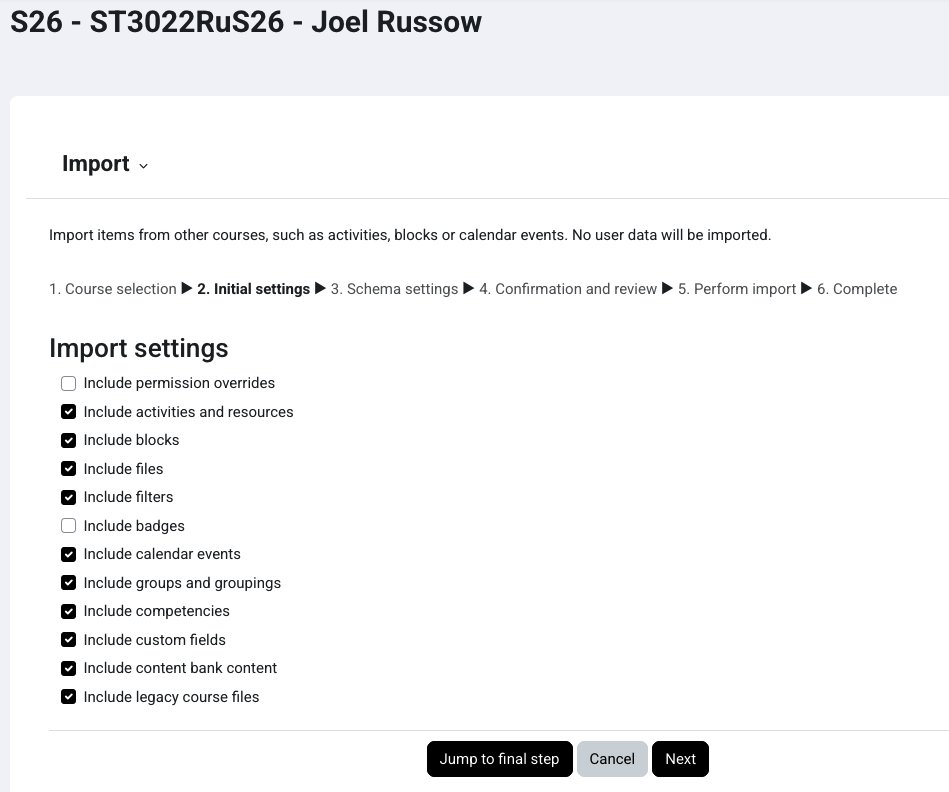
You can leave all the settings the same as default and click 'Jump to final step'.
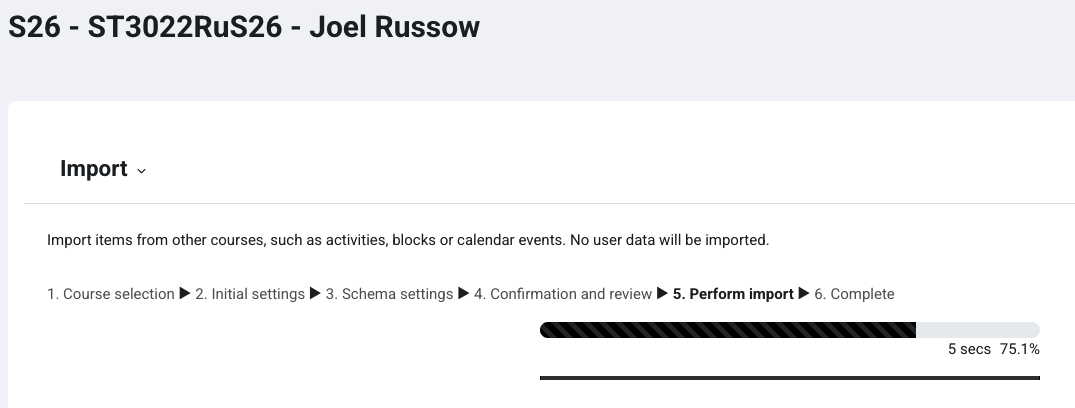
The system will start the import. The import may take some time depending on how much data is in the old course.
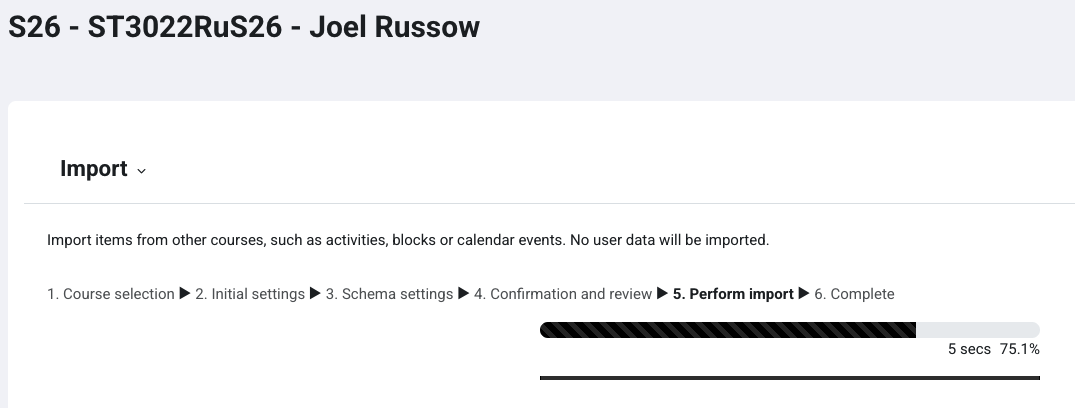
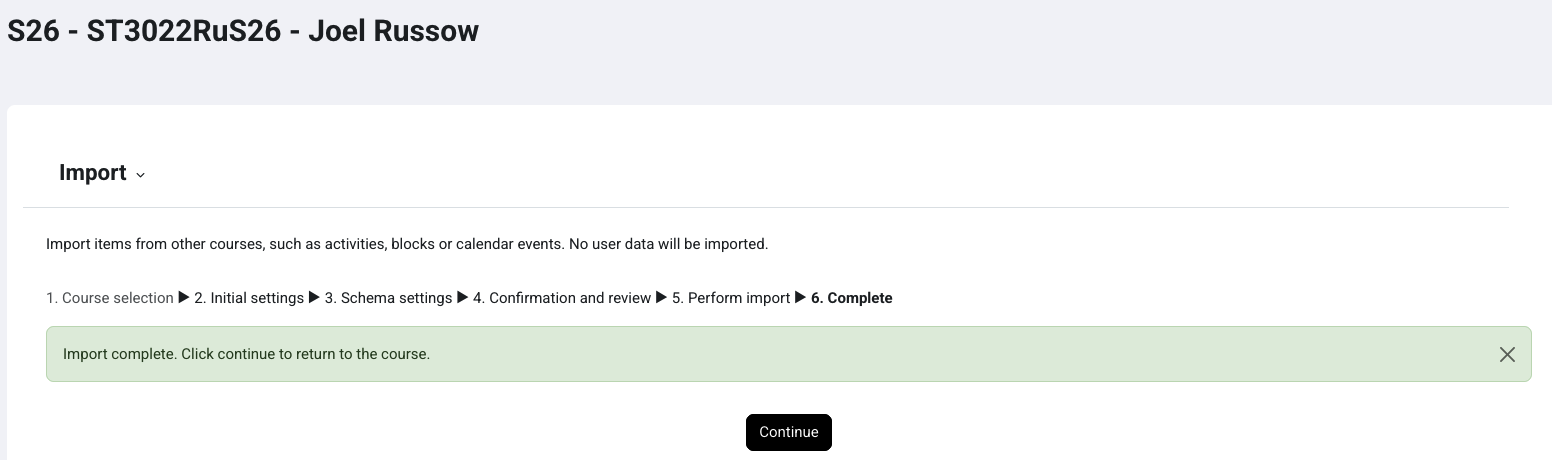
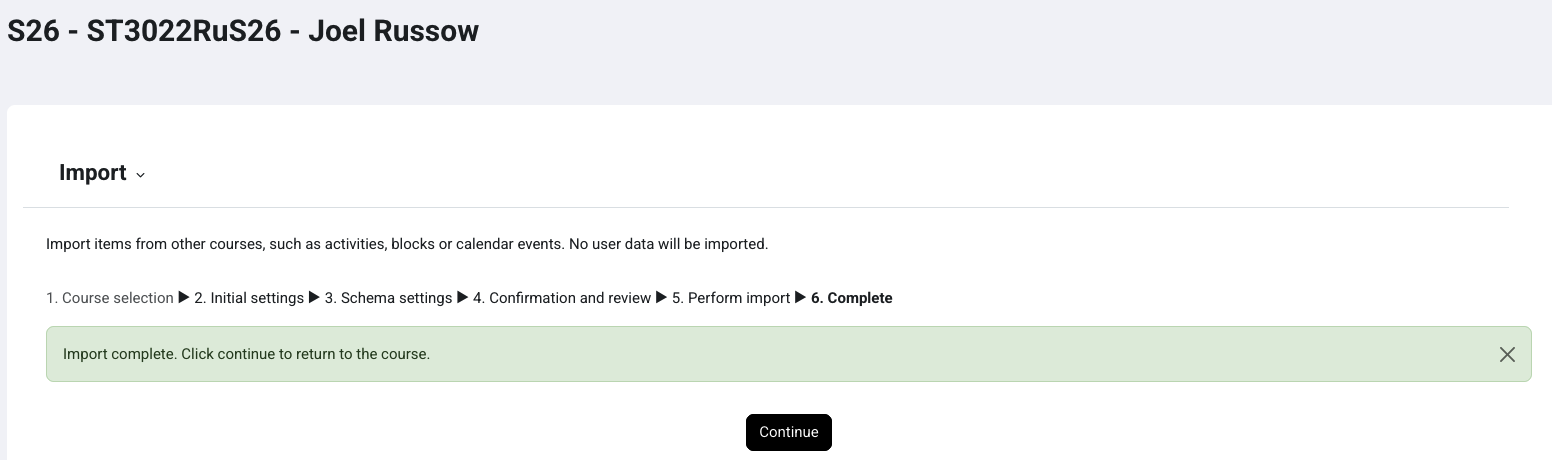
Once it is has completed, you can click Continue and it should bring you to the main page of the course.
Provide the professor his new course URL by copying the URL in the address bar of the browser.


No comments to display
No comments to display