MDiv M365 account setup.

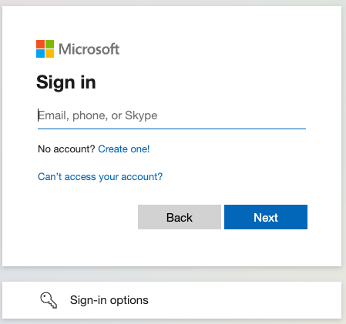
You’You'll need to open a browser and head to http:https://www.office.com and click on M365_sign_in.pngin the upper right corner of the page.


Enter in the email address and temporary password you were provided in the email from WLS Tech ServicesServices.GiG_M365_1.png
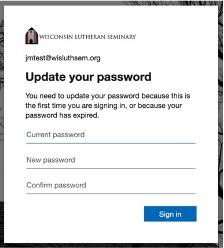
You’ll be prompted to change your email password. Enter the temporary password as the current password and type a new password twice. Complexity rules are in effect so you will need a minimum of 8 characters (1 lower case, 1 capital letter, 1 number, and 1 symbol).
GiG_M365_2.jpg
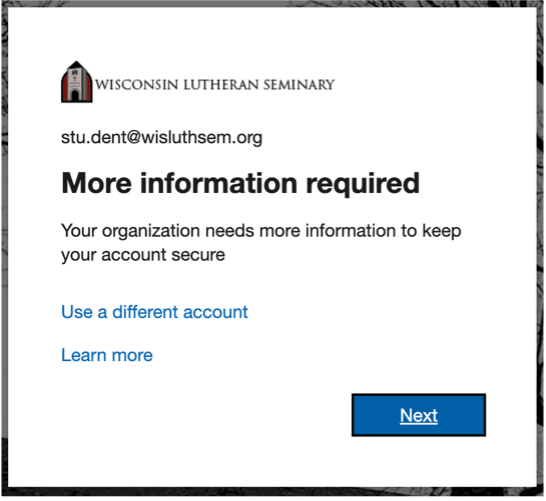
You’ll then be asked to provide more information. Click Next.

GiG_M365_3.png

You’ll have two options to keep your account secure.

The best option is to use the Microsoft Authenticator App. You can skip to the next step if you already have the Authenticator App. You can get the Microsoft Authenticator App by opening the camera on your smartphone and scanning the appropriate QR code to download the app. This will take you to the App store of your device platform to download the app.

iOS Device
Android Device
GiG_M365_5_ios.png
GiG_M365_6_android.png
 
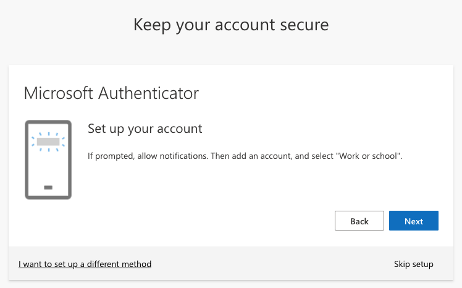
Once you have the App click on next and follow the steps to set up the Authenticator app. You can use a different authenticator app if you already have one. It should work the same way for the steps below.
Your device may look a bit different if you have already had Authentication set up for other sites. If so, you can click on the + sign to get to the Add Work or School account. Or you can tap the icon on GiG_M365_7.jpg your device to open the camera to create a new authentication session.
 
Click next to move to the next screen which will provide the QR code.
GiG_M365_8.png

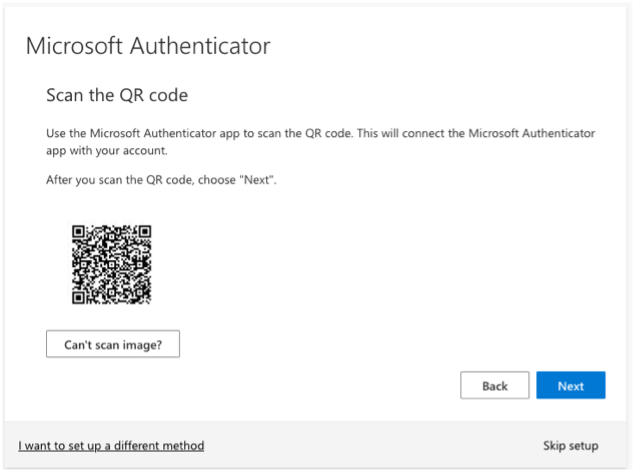
You should see a screen like the one to the right. Scan the QR code on your computer to set up the Multifactor Authentication Session. DO NOT SCAN THE QR CODE in the screenshot below.
 
GiG_M365_9.png
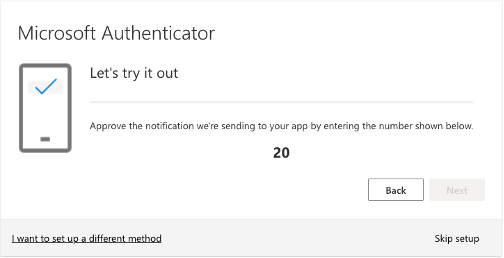
Once you have scanned the QR code on your computer, you should see a new Authentication session on your device. Click Next and you should see a number displayed on your computer and be prompted to enter that number on your device.

GiG_M365_10.png
Once you have entered it in the phone, tap ‘this is me’ to verify you are the one who requested the number. Click Next to advance.
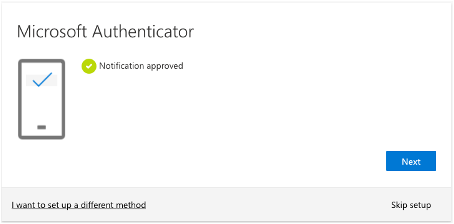
If everything worked correctly you should see the image below.
GiG_M365_11.png

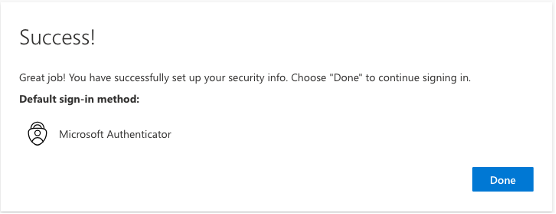
Go ahead and click next. Everything should be successful and you'll see the screenshot below.
GiG_M365_12.png