MacOS Printing (2025)
To start, make sure you're logged into your @WLS account and download the Mac installer for PaperCut.
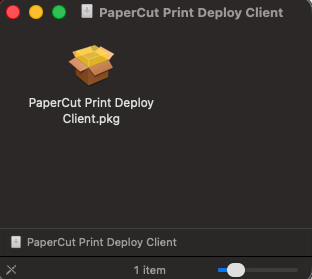
Once you have downloaded the software, click on the PaperCut Print Deploy Client package.
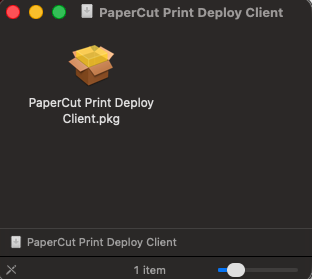
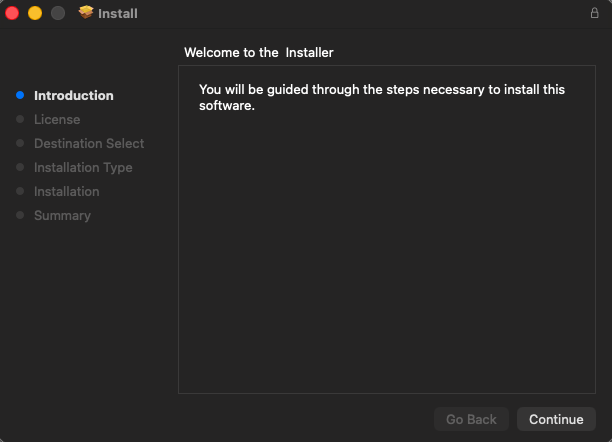
Click Continue to move your way through the installer.
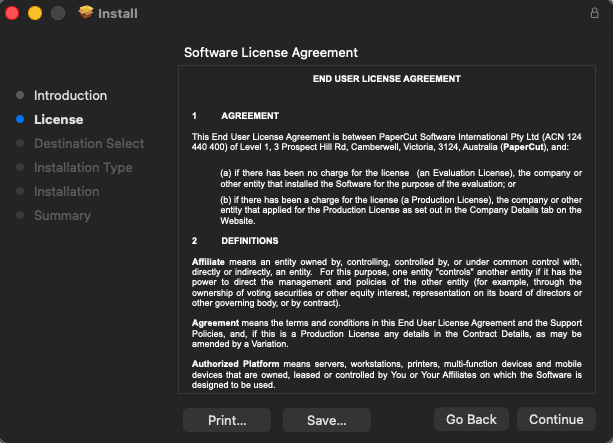
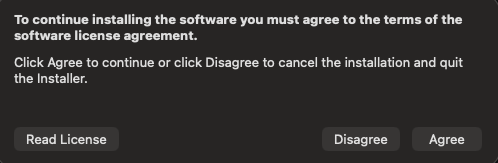
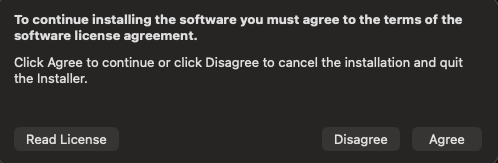
Click Agree to accept the software license agreement
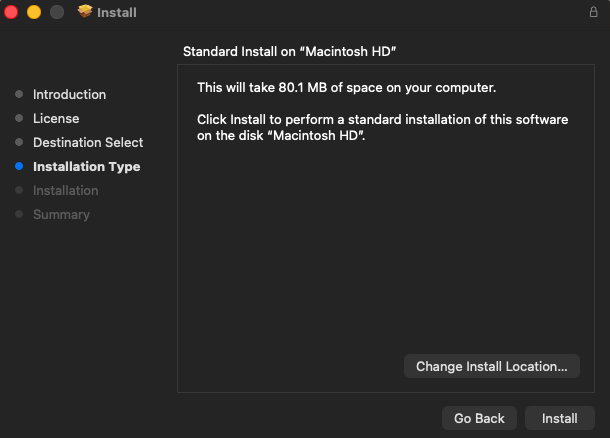
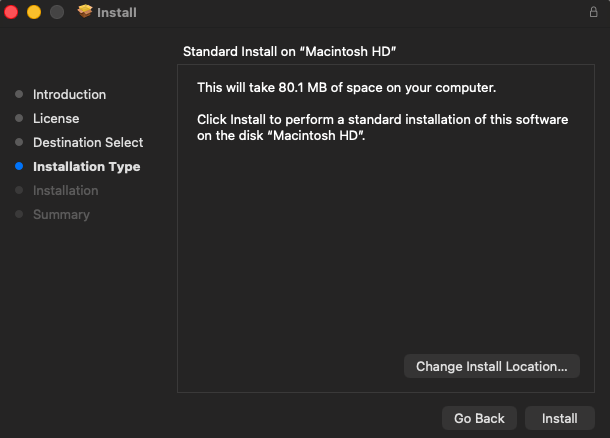
If you wish to change the installation location you can do so from this window. Otherwise, click install to install PaperCut Print Deploy.
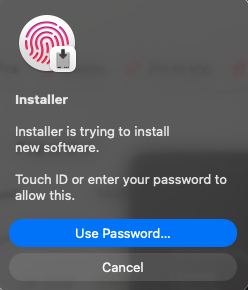
Depending on your Mac, you may be prompted for your fingerprint to continue the installer.
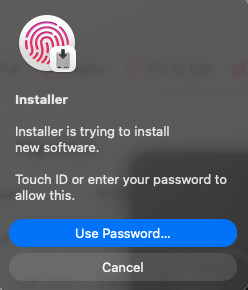
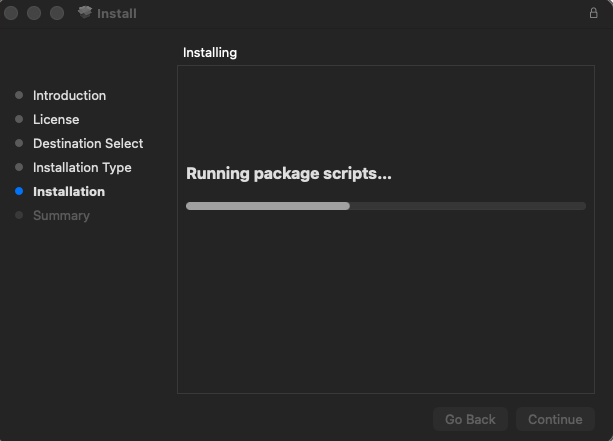
The installer will then continue.
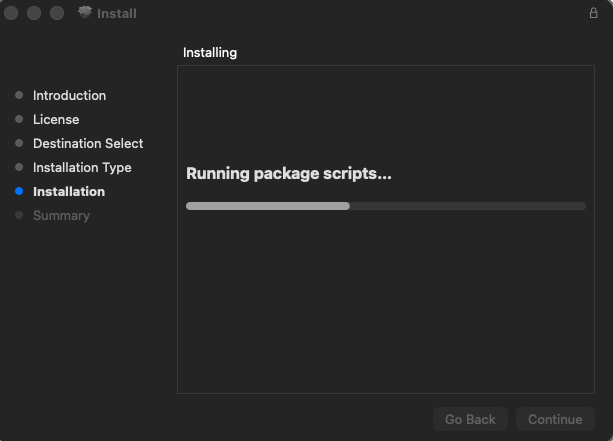
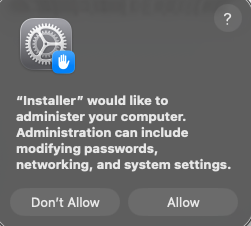
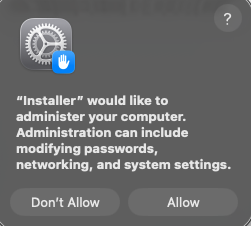
You will have to click allow for the installer to make changes. It will only make changes to items directly related to PaperCut and printing.
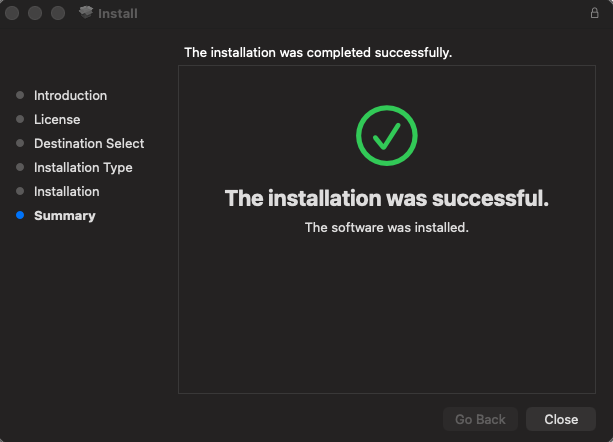
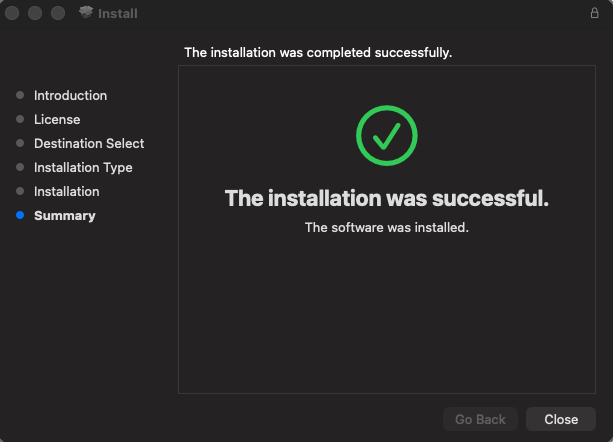
Click close, once the installation is successful.
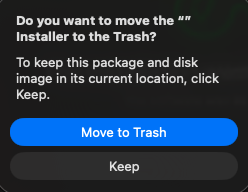
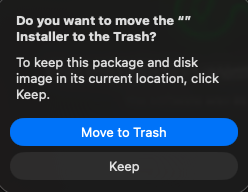
You can click 'Move to Trash' as you won't need the installer.
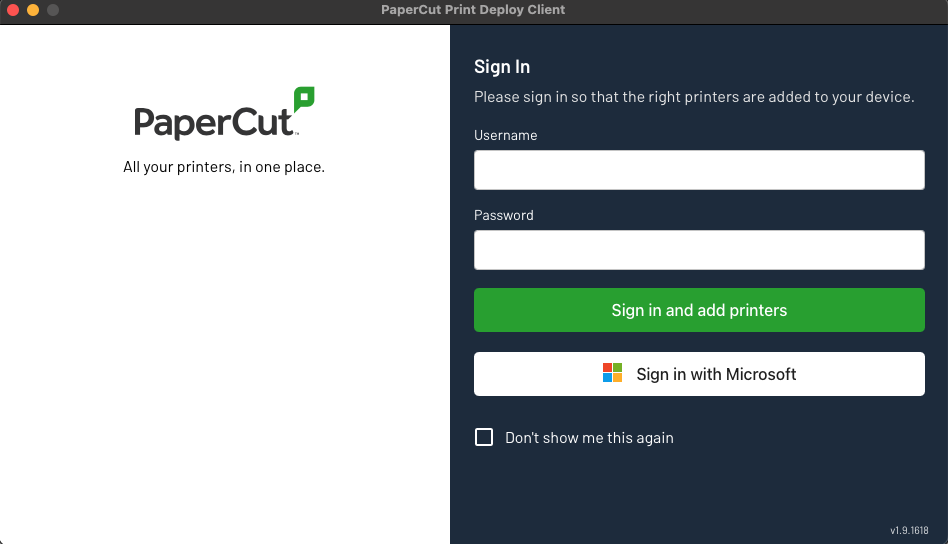
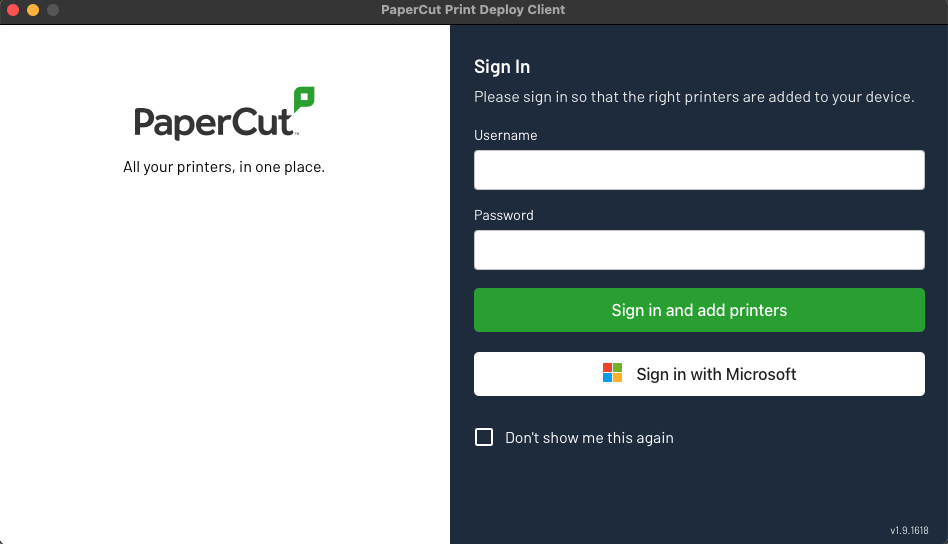
Once you have completed the installer, you should see the window below. Click 'Sign in with Microsoft' and it should redirect you to verify that you are logged in with your @wls credentials.
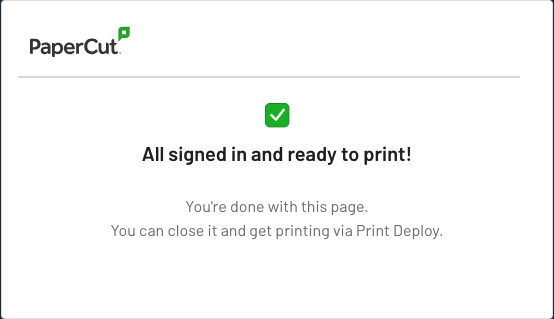
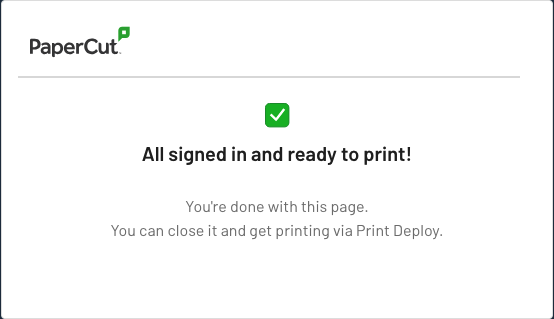
If you are logged in with your @wls credentials, you should see the 'All signed in and ready to print' on your browser.
The Print Deploy software should automatically install the printer(s) available to you.