Scan to OneDrive
Scanning to your OneDrive account is easy to set up.
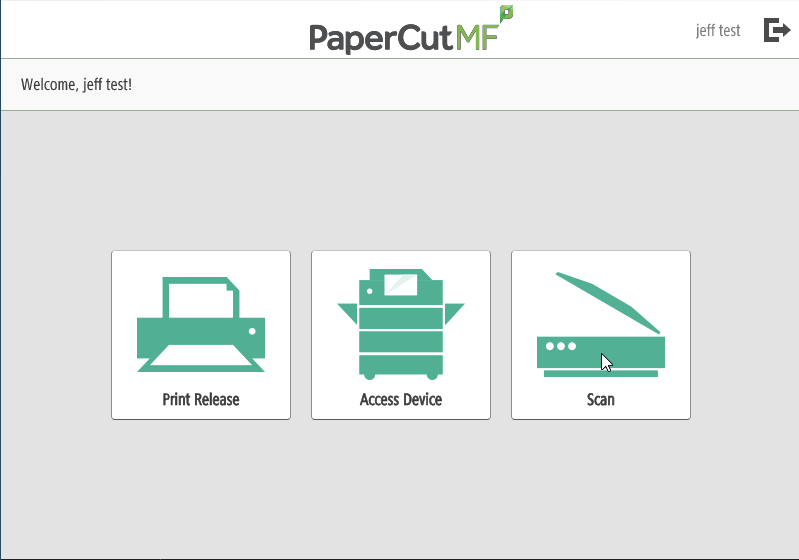
Use your FOB to log into your PaperCut printing account on any device.
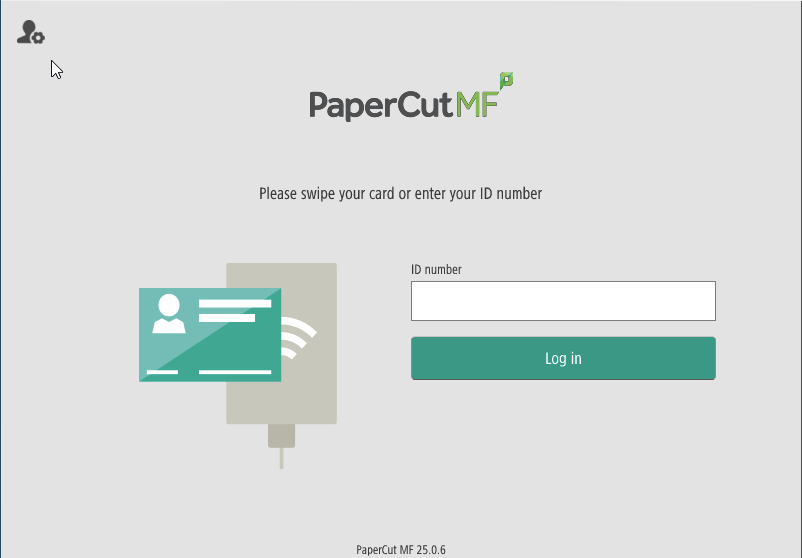
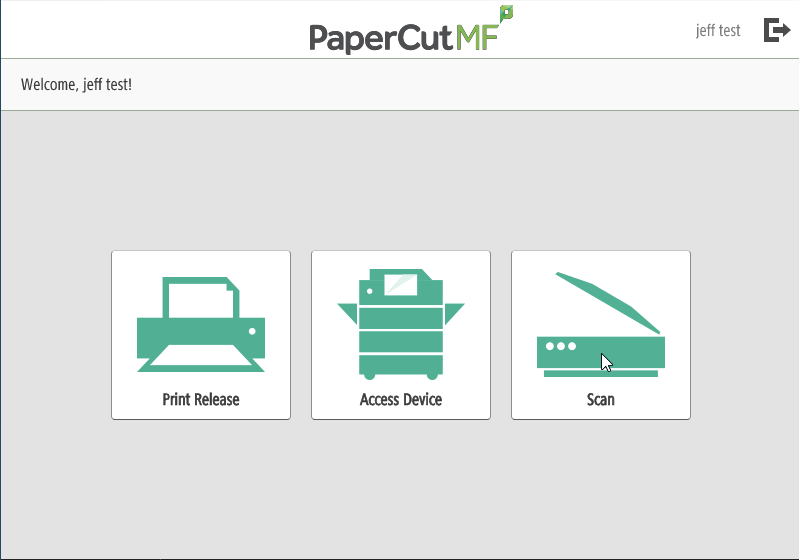
Select the Scan option on the printer.
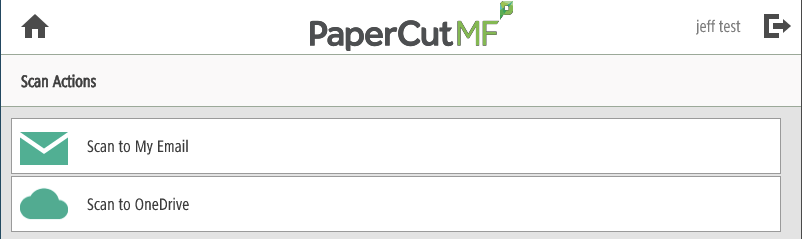
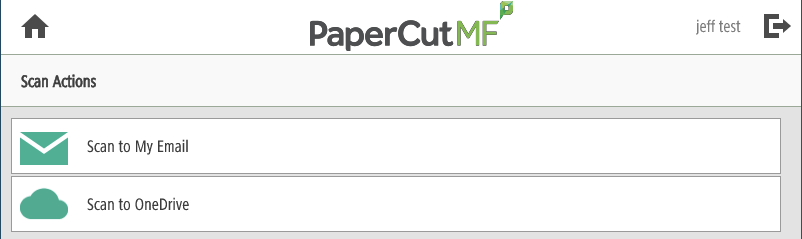
You have the option to 'Scan to My Email' or 'Scan to OneDrive'. The 'Scan to My Email' option is limited to a 25MB size limit due to mailbox restrictions.
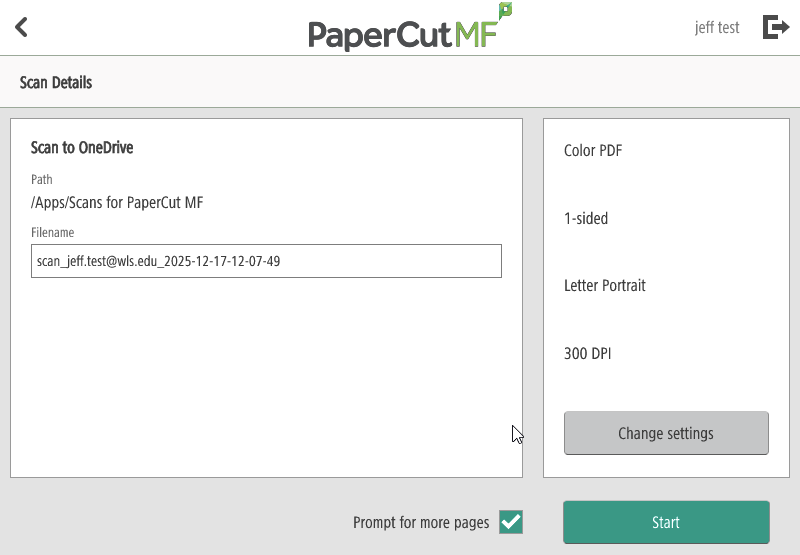
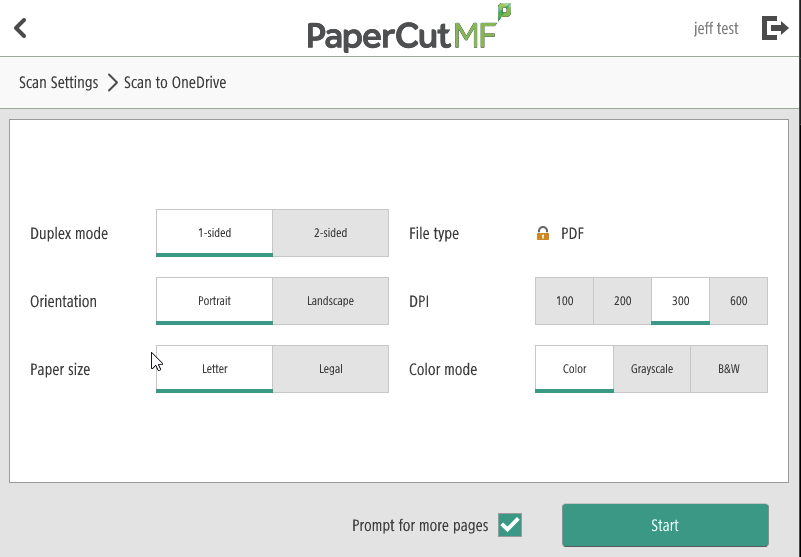
Once you have selected the 'Scan to OneDrive' option, you will see the option below.
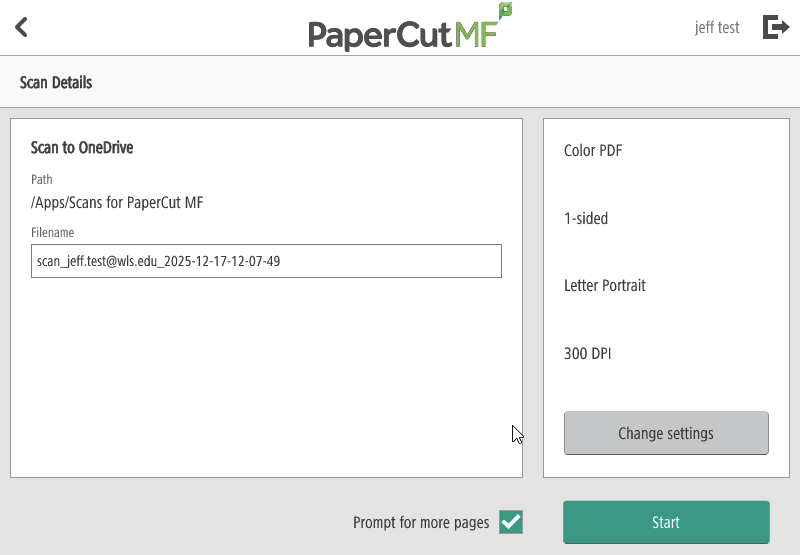
You can also use the 'Change settings' button to make changes to the document(s) you are scanning.
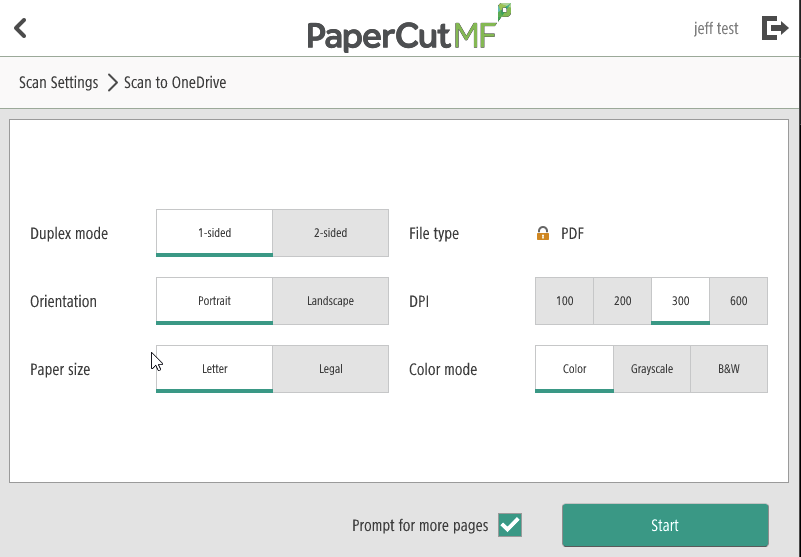
Tap the Start button and scan away. You can uncheck the 'Prompt for more pages' box If you are only scanning a single page.
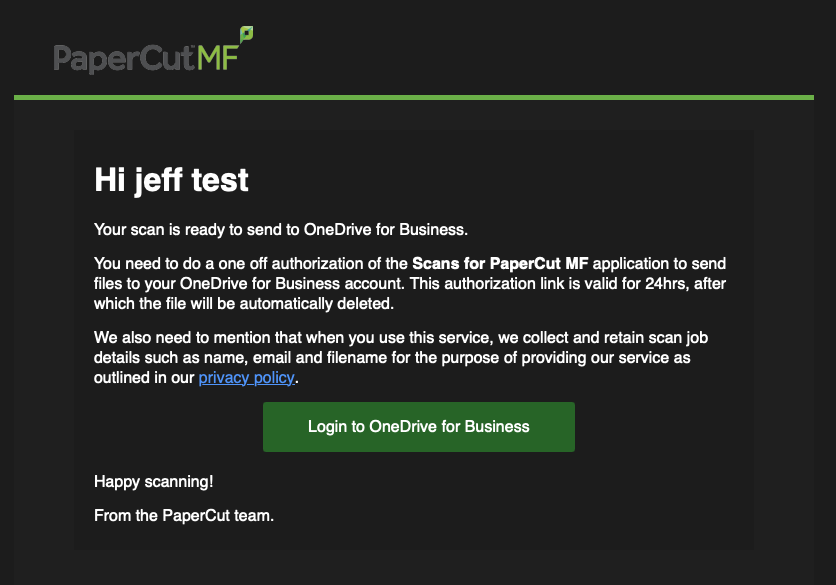
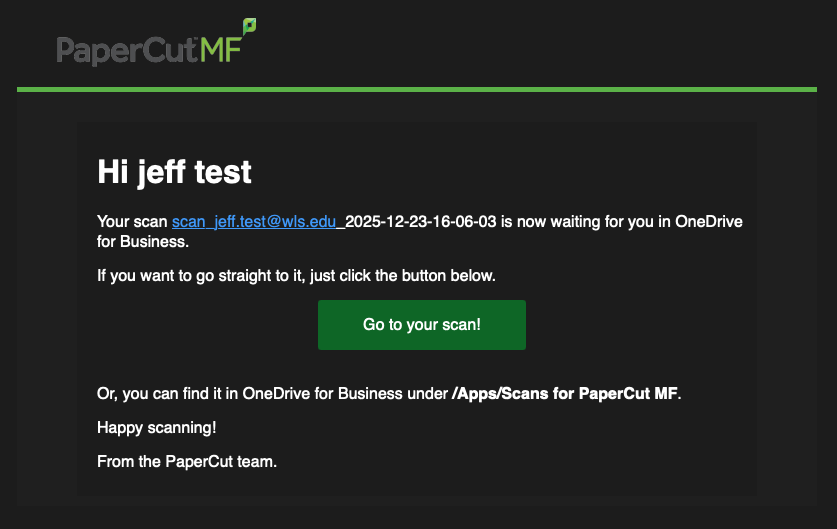
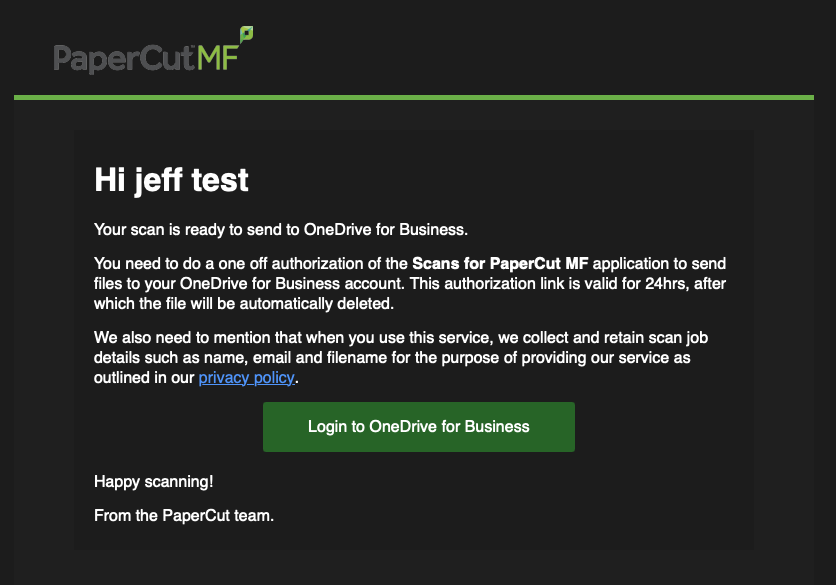
You will get an email once the scan has been completed. Click on the link in your email to allow PaperCut to make the connection to your OneDrive folder.
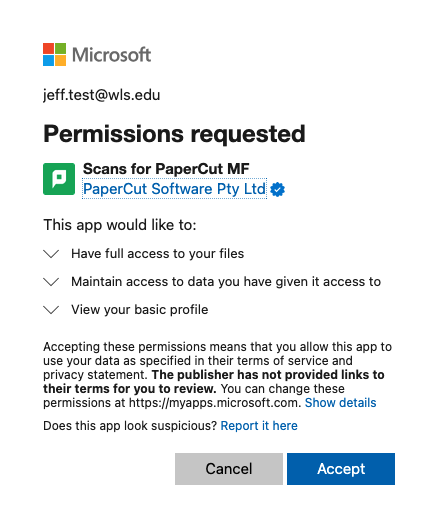
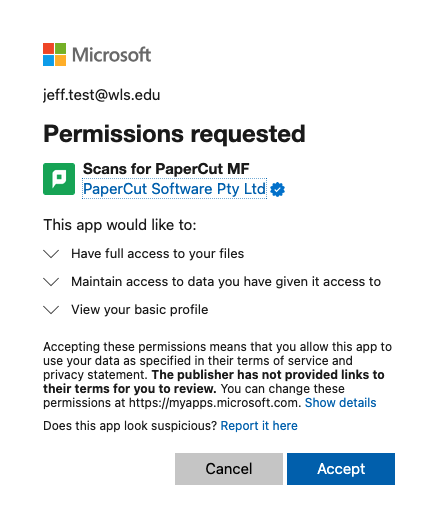
You will be prompted to login to your WLS' M365 account to verify and confirm the access. Click Accept on the Permissions requested pop-up.
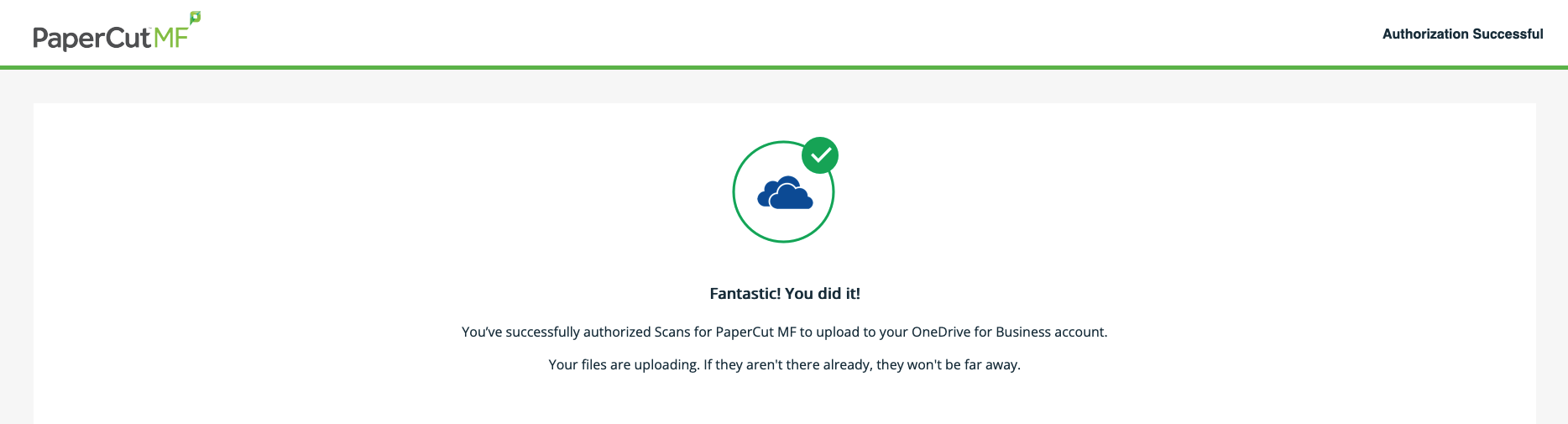
After clicking on Accept, you will be redirected to the screen below.