Windows Printing (2025)
To start, make sure you're logged into your @WLS account and download the Windows installer using this link -> PaperCut for Windows
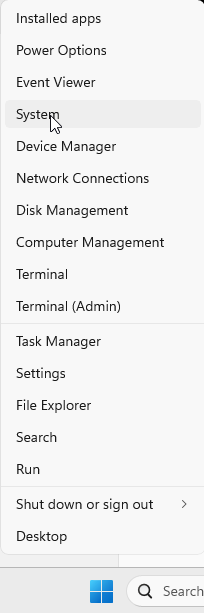
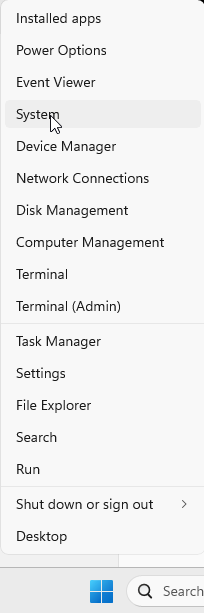
Right click on the Windows Logo (Start button) and select System from the menu.
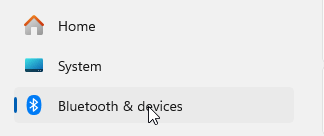
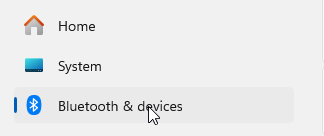
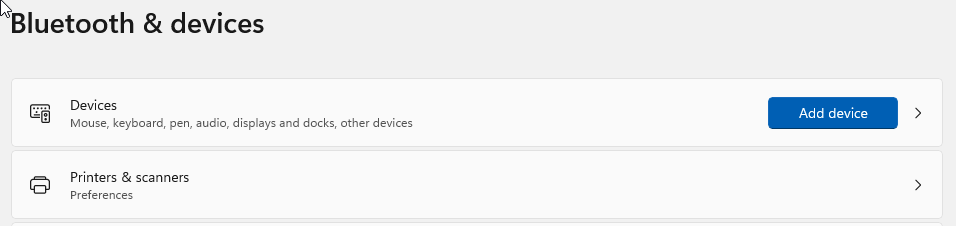
From the next screen, select Bluetooth & devices
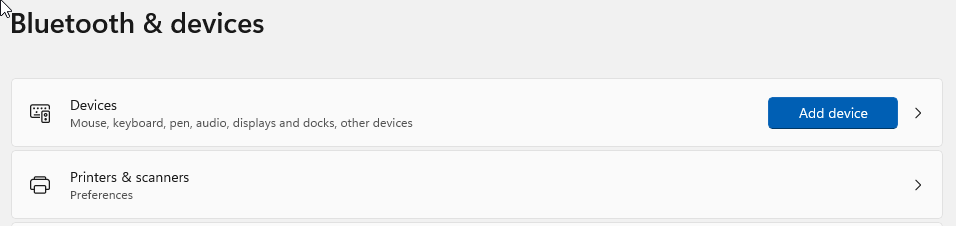
From the Bluetooth & devices menu, select Printers & scanners.
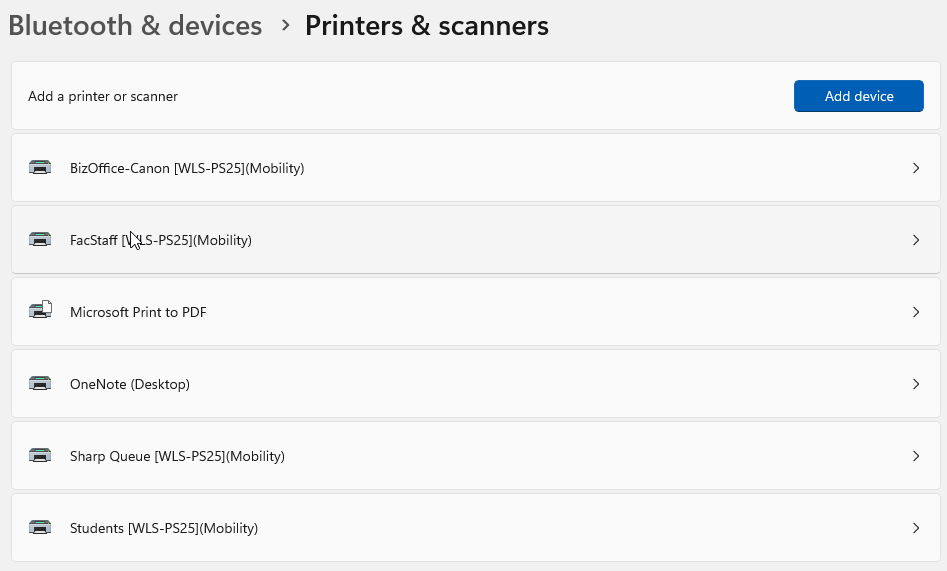
From the Printers & scanners screen, select any printers that have [WLS-PS25](Mobility)
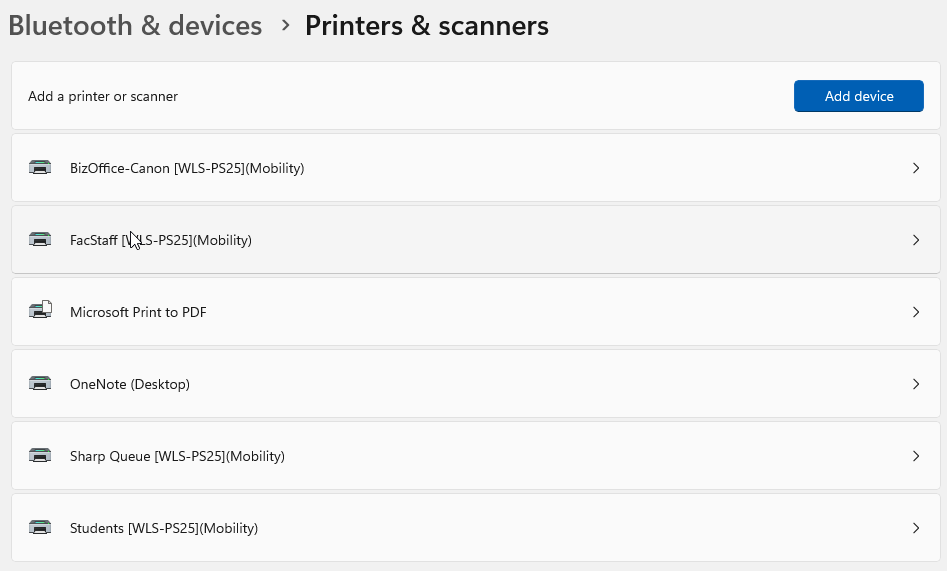
Click on the Remove button. These printers are no longer an option for printing.

Once you have removed all the devices with the [WLS-PS25](Mobility)