Before we install the PaperCut Print Deploy software, we are going to clean up the old printers if you have them. If you have never installed any of the print software from WLS, you can skip to the install instructions.
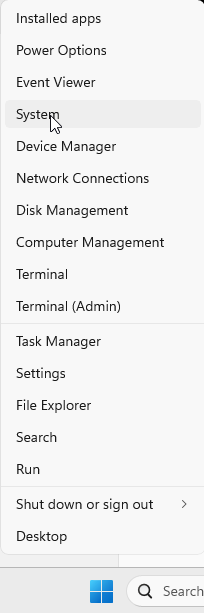
Right click on the Windows Logo (Start button) and select System from the menu.
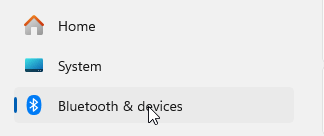
From the next screen, select Bluetooth & devices
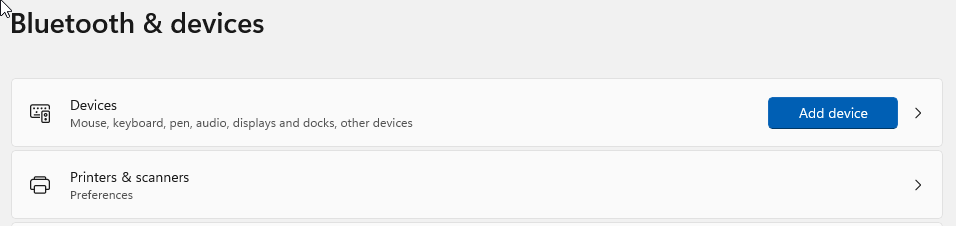
From the Bluetooth & devices menu, select Printers & scanners.
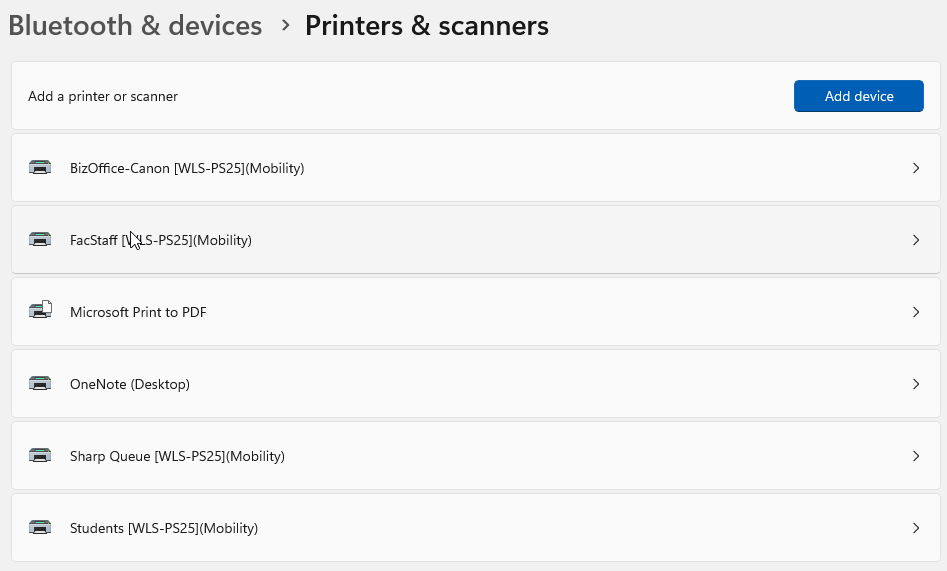
From the Printers & scanners screen, select any printers that have [WLS-PS25](Mobility)
Click on the Remove button. These printers are no longer an option for printing.
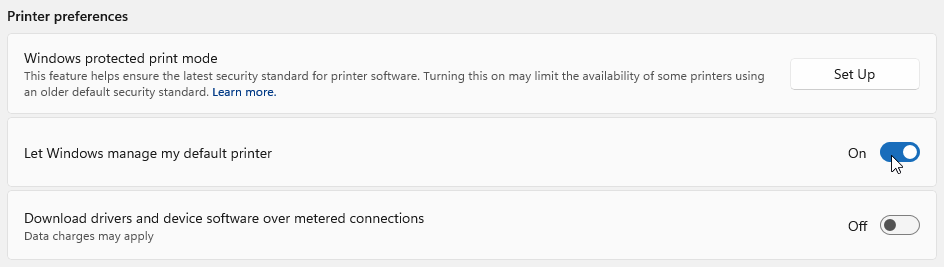
Once you have removed all the devices with the [WLS-PS25](Mobility) tag, go back to the Printers & scanners window. Under the Printer preferences header, click the 'Let Windows manage my default printer' slider so it is off. Windows tries to control the default printer and it can cause some issues.
We will now install the PaperCut Print Deploy software. Make sure you're logged into your @WLS account and download the Windows installer using this link -> PaperCut for Windows
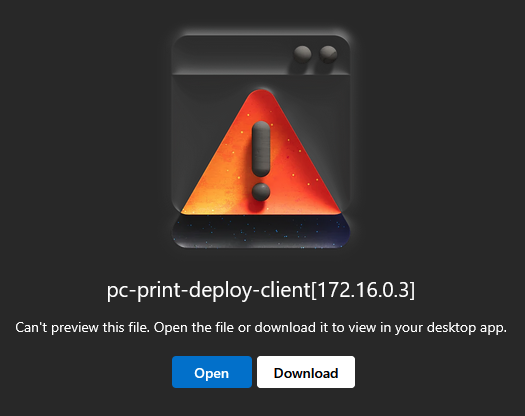
You may be prompted to click open or download to start the install process. Either will work.