
Mozilla Firefox "New Private Window" on Windows
Use an InPrivate window when you do not want Edge to save local browsing history, cookies, site data, or form entries after the window is closed.
HINT: Quick keyboard shortcut: Ctrl + Shift + P
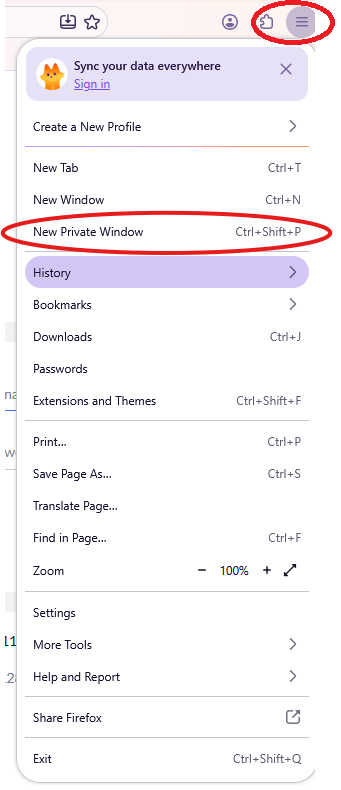
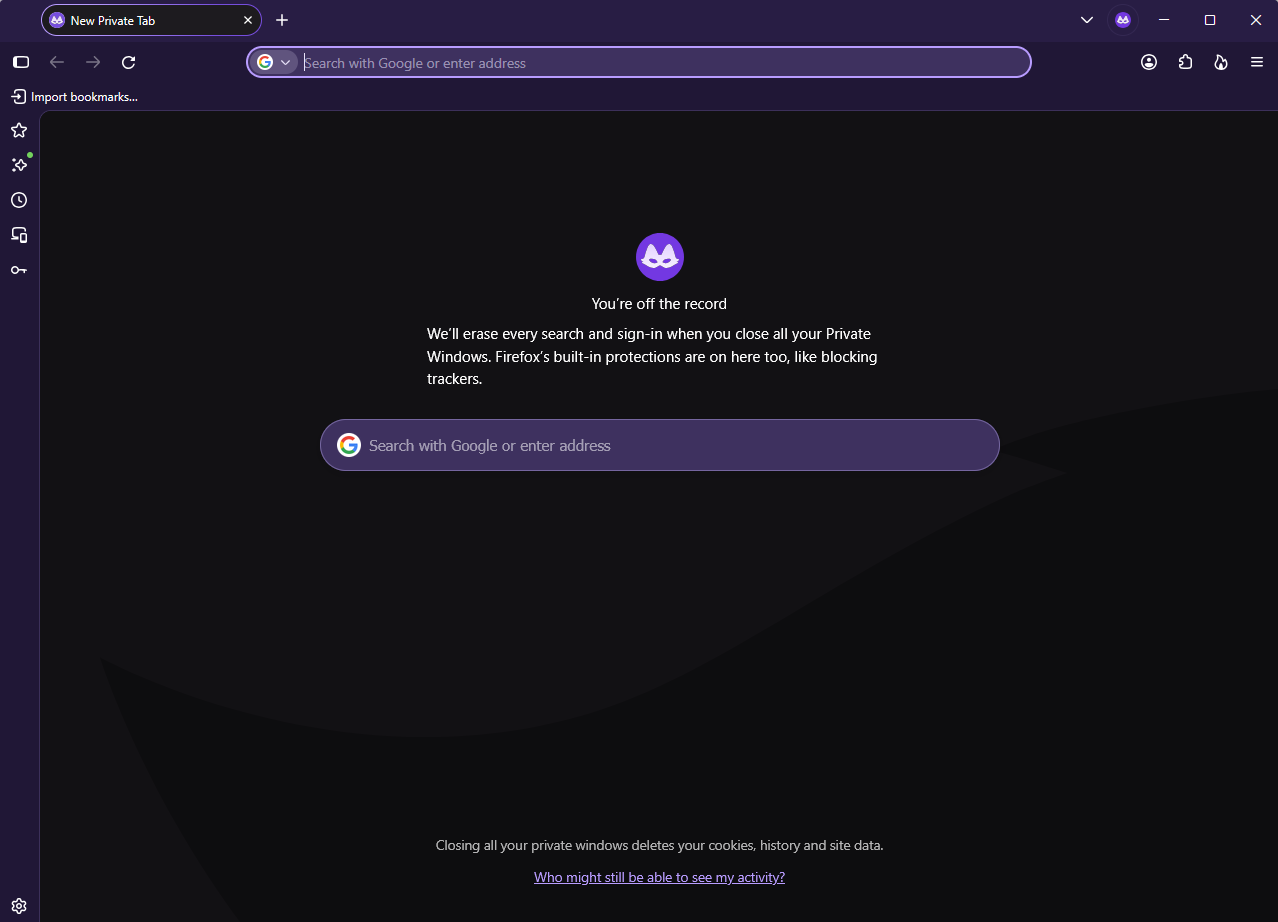
2. A separate Private window opens. Look for the New Private Tab label near the top of the window.
Important to know
-
Private browsing limits what Firefox stores on the device after you close the window.
-
Downloaded files and new bookmarks remain on the device.
-
Private browsing does not make your activity anonymous to websites, your internet provider, or your organization.
No comments to display
No comments to display